
In the Settings section , you created a group structure for users (recreating your company's structure).
Now you need to assign content to these groups that users will see in the app. The Access
tab allows you to make content available to users through group settings , as well as assign access individually .
It's not possible to grant access to each individual material from the Materials section . Materials created in this section of the platform's administrative panel are only available to the user if they are included in a training program to which they have access .
Assigning group access
Assigning access to content is done on the Access tab .
Note: For some entities, the access settings tab is located in the additional menu, while for others, it is located at the top of the settings form.
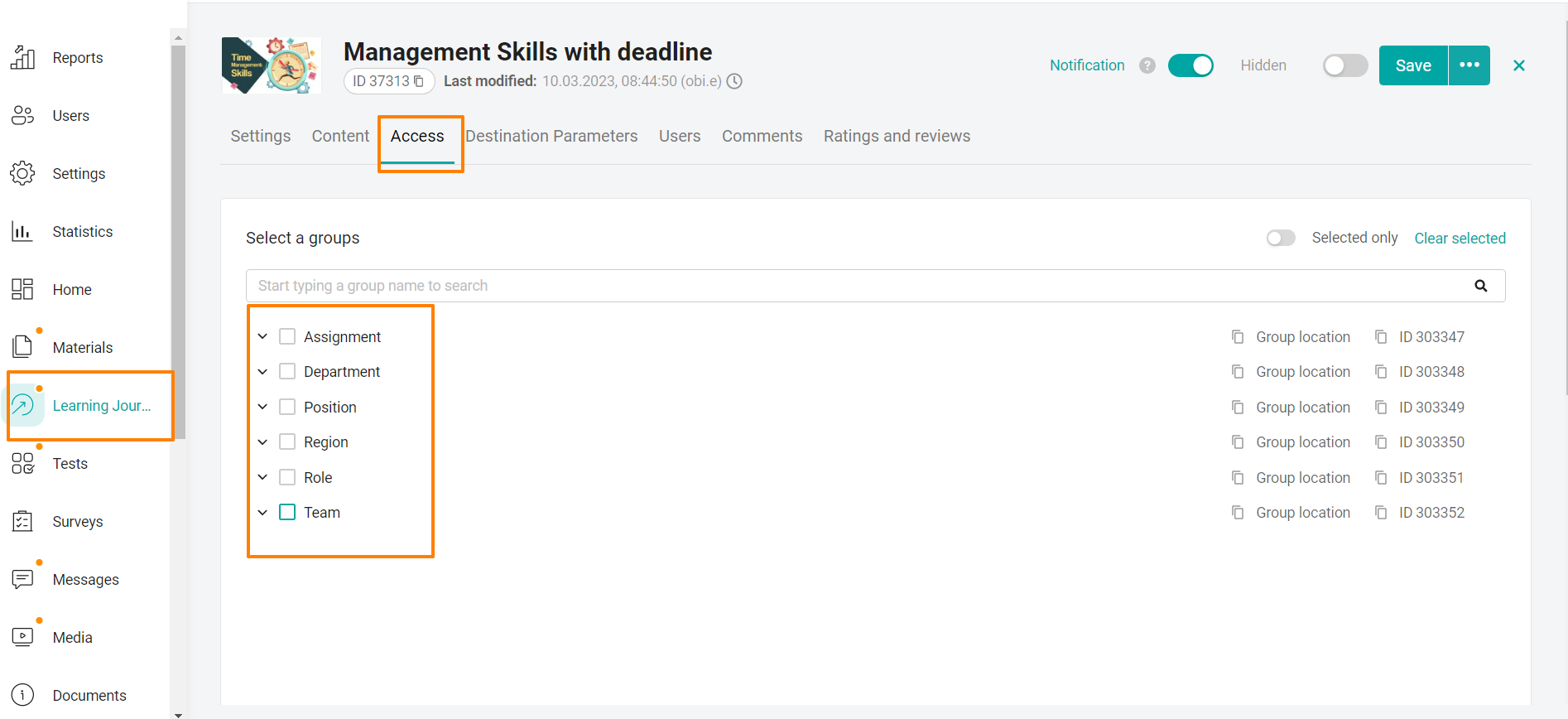
Empty checkboxes next to all root groups indicate that the element is not accessible to anyone via group access .
If at least one checkbox is checked (regardless of whether it's for the entire root group or a subgroup within it), then the root groups with empty checkboxes are automatically considered checked by the system.
Example No. 1 .
Access is open to all positions, all organizations, all ranks, etc. That is, to all groups.
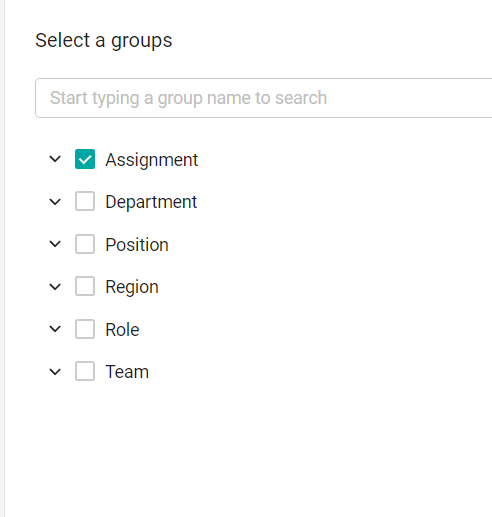
Example No. 2 .
Access is granted to one or more positions from the general list of positions.
All selected groups in the root group are displayed with a check mark next to the root group, as in example 1.
If not all groups in the root group are selected, a dash appears next to it, as in example 2.
In the 2nd example, access is open to several positions and all organizations, all ranks, all regions, etc.
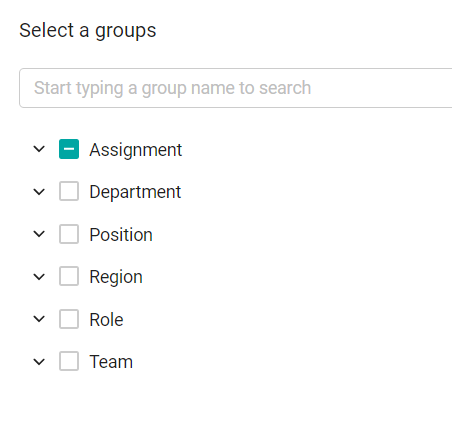
In the Select Groups area , expand the group type branches by clicking on them and select the desired group values.
If the groups match the access level (and the content's active status), users will be able to see the content in their app.
When selecting groups, you can use the search. To find the desired group, enter your search term in the search bar and press Enter on your keyboard.
You can view selected groups using the Selected Only switch at the top of the table . The Clear Selection
button resets the selection to only selected items and displays all groups again.
Assigning individual access
Individual access is configured in the Assign individual access block .
Individual access can be granted to one user or to several at once.
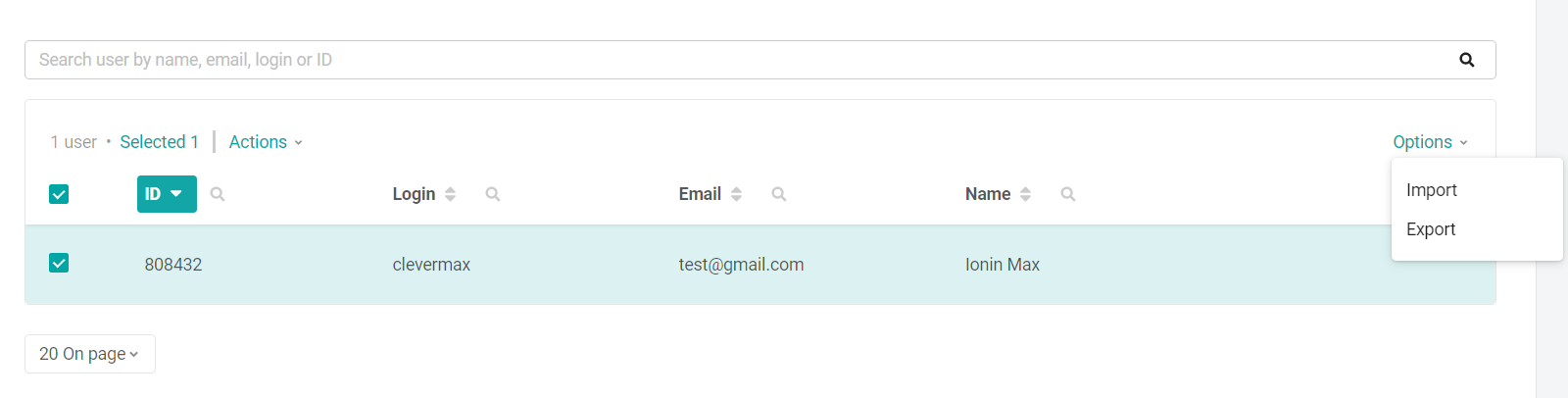
To grant individual access to one user:
- go to the Access tab in content;
- At the bottom of the screen, on the Access tab, enter the employee's name, email, login, or ID in the search bar and select them from the search results.
This user is granted access to content. The user will appear in the table below.
To grant access to a large number of users, use the import function on the Access tab .
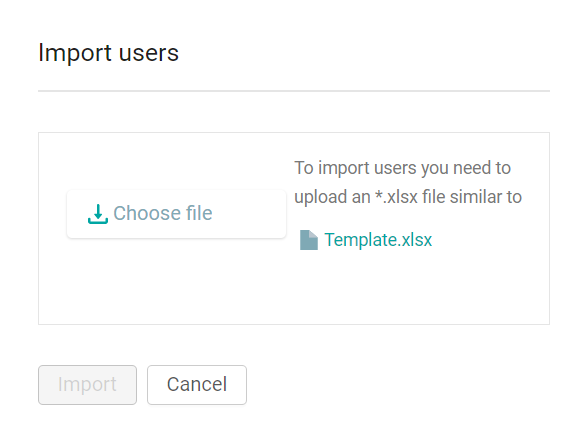
To grant individual access to multiple users at once:
- go to the Access tab ;
- At the bottom of the screen of the tab that opens, next to the field for issuing individual access, click Options and select Import ;
- in the window that opens, download the template ;
- Fill out the template , indicating the details of the employees who need to be granted individual access;
- Upload the completed template by clicking Select File - Import .
Version 14.4.0: The individual access import template now allows you to assign content by filling in the template with data not only by login, but also by ID, email , and phone number.
The template values are not case-sensitive.
When granting access by phone number, ensure that the values in the user card and in the access import template are identical.
Filling in all the columns in the template is not mandatory; filling in just one is sufficient. Values are processed in order from left to right.
You can also export data for users who have already been granted individual access by clicking Options - Export above the user table.
This way, you can grant access to a training element to just one or several employees in different groups.
This feature can also be useful when creating a training program (or other content): as an administrator, you can grant individual access only to your user account, test the course display, make adjustments if necessary, and only then grant access to user groups.
To remove individual user access to content:
- Go to the Access tab in this content;
- In the individual access table , select the required users using the checkboxes ;
- Click the buttonActions on the table with users and select Delete ;
- In the confirmation window, select Done .
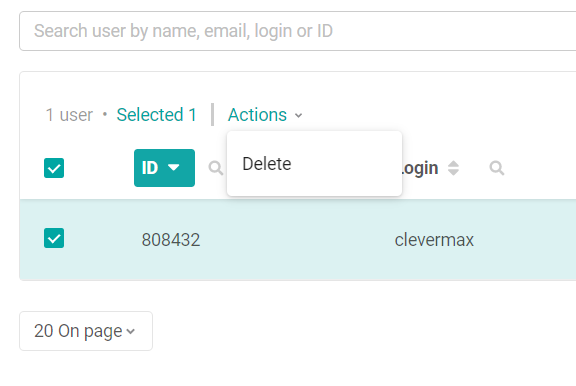
Note: Removing users from the individual access table removes access to the materials. The user accounts themselves are not deleted.
Bulk content assignment
The system also allows for bulk content assignment, meaning assignment to multiple materials simultaneously.
This method is suitable when multiple materials require the same access rights.
This feature is available in all content sections.
Let's look at how it works in the Training section. It works similarly in other sections.
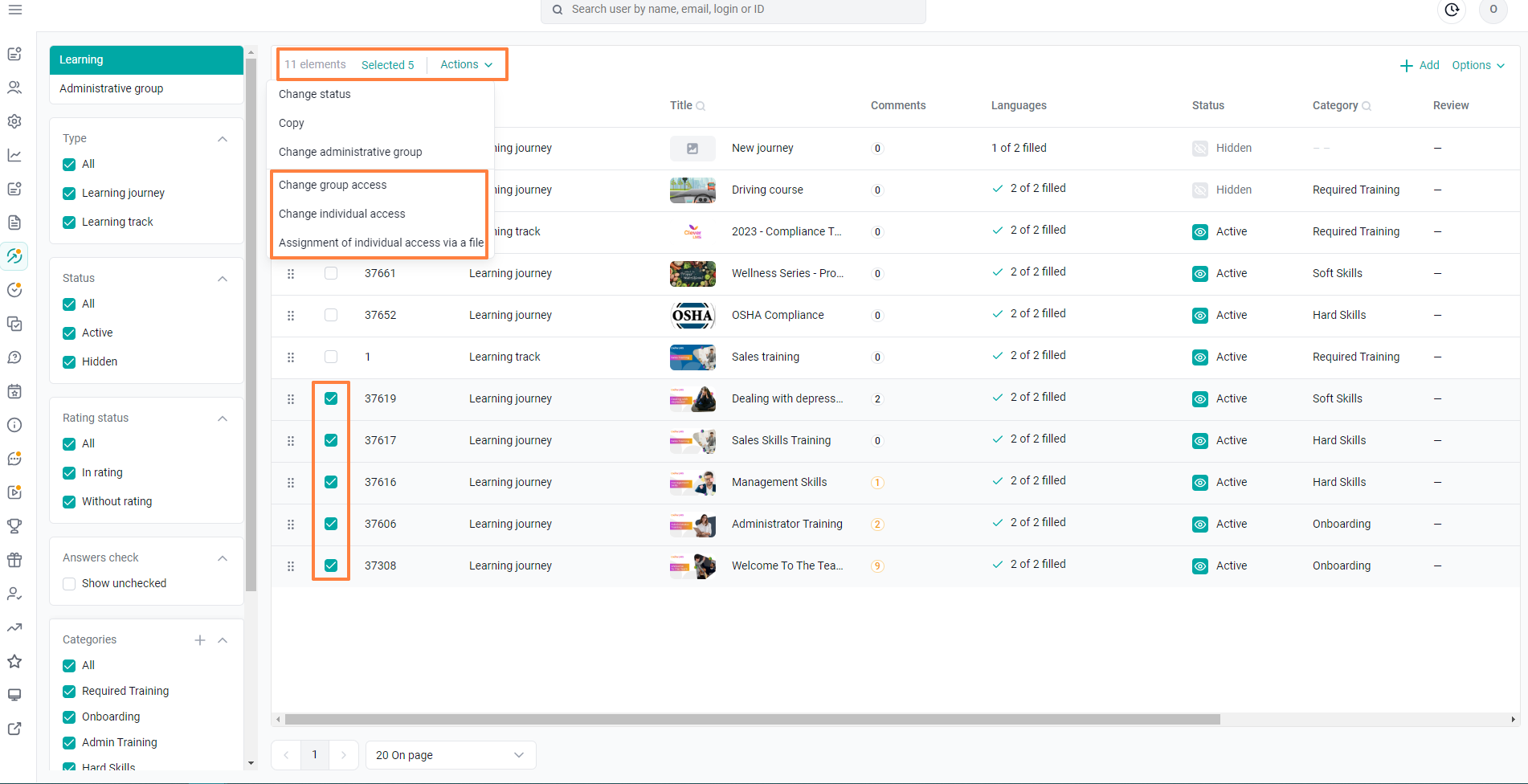
Using bulk actions in the Training section, you can:
- Change the status of programs/training paths;
- Copy programs/training paths;
- Change the administrative group that the content belongs to;
- Change group access;
- Change individual access to content;
- Assign individual access to several programs/paths at once via a file;
- Allow or prohibit the assignment of selected programs/paths by the manager (if this option is enabled in the company).
To perform mass actions with content, you need to:
- Go to the desired section;
- Select the content you are interested in using checkboxes;
- Click on the Actions button;
- Select the required mass action.
For example, in the training programs section, we've selected all the necessary programs using checkboxes.
We clicked the action button and can then change access by group or individually.